Step Colors
Your own categories of steps: conditions over a step's properties that put each step in a leaf, with a colour and a chart lane per leaf, saved with the project.
A color tree sorts the steps of a run into categories you name — overloaded, rapid, in the air,
cutting — by conditions over the step's properties: a step goes down the tree's list from the top and
stops at the first node whose condition holds. A leaf is a category, with a colour of its own and a
lane of its own on the Color Index Time Chart; a group is a condition whose own list sorts further the
steps it takes. The project keeps its trees and every play reads them, and the tree that is the color
index — the step property the Color Index Time Chart plots and the 3D view colours the tool path and
the cut faces by — colours the run by its leaves. HiNC defines two trees of its own as well,
Machining State and Machining State (No Physics), which the root lists first, read-only
(Engineering View Coloring). The trees are the Execution page's fourth
Control-Tree root, Step Colors, below Mission, Program and Step Variables, at Control-Tree path
execution/step-colors.
Where it is
The root's panel lists three groups.
- Built-in — the trees HiNC defines, read-only, before the project's: one row each, the name with the key and the number of leaves under it, a strip of the leaves' colours — the first thirteen — and the Inspecting badge while the color index reads the tree. A click unfolds the row to the tree's leaves, each with its colour, its name and its condition in one line, a group as a row of its own with its condition and its leaves one level in, above Set as color index — the Inspecting badge once the tree is the color index — and Copy to project tree… (Copying a built-in tree). A built-in tree is not saved with the project, it follows HiNC's version, and it has no node in the Control Tree.
- Project — the trees this project defines, one row each: the name, with the key and the number
of leaves under it, a strip of the leaves' colours, an Inspecting badge on the tree the color
index reads, and a badge for what the engine made of the tree. Registered means it is in use.
The others say why a tree is not: Does not compile — a problem keeps the tree from compiling,
such as a term without a key; Unreadable — the tree was written by a version this one does not
understand, and is kept as written; Key of a built-in property — a key named like a built-in
step property or a built-in tree, or under
MC.; Key repeated in the project — a step variable of the project or an earlier tree has the same key. Each tree is also a node under the root, its groups and leaves nodes under it, and its row selects that node. In the Control Tree a tree's row carries Inspecting too, and its state while it is not registered. - Registered at run — the trees a mission script registered for this session with
RegisterStepColorTree, listed read-only with their colours. They have no node, and they go with the session.
Edits in this branch change the project in memory. They reach the project file when the project is saved, File › Save, and the panel says so under the list.
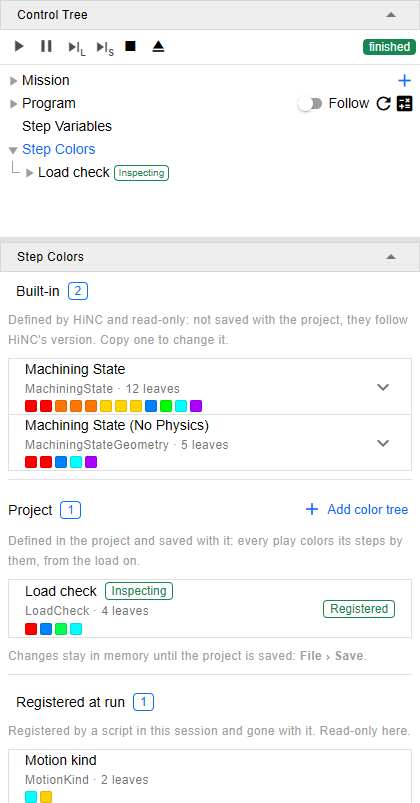
The branch at /execution?tree=execution/step-colors after a play. Machining State and Machining
State (No Physics) are HiNC's built-in trees; Load check is the tree of the example at the end of this page, set as
the color index; Motion kind was registered by the mission's script.
Adding a tree
Add color tree opens New Color Tree, which asks for a key. The key is checked as you type, by
the rules of a step variable's key: it may not be empty, hold a comma, a quote or a slash, or be a
lone . or ... The color trees and the step variables share one set of keys, so a key a tree or a
step variable of the project already has is refused, and so is a built-in step property's key, one
under MC., or a built-in tree's, MachiningState or MachiningStateGeometry (The key of a
built-in color tree.). Add only ever adds: a key another browser tab added meanwhile is refused on the key
field, and no tree is replaced. A key that a tree registered at run has is taken, with a warning: the
project's tree replaces that one for the session.
The tree starts with one leaf, named Otherwise, which takes every step, and its panel opens.
Copying a built-in tree
Copy to project tree… — on a built-in tree's row, or in the Color Index Time Chart's Colors
dropdown while the tree is the color index — opens Copy to Project Tree: a Key, which starts at
the tree's key and Copy, MachiningStateCopy or MachiningStateGeometryCopy, or …Copy2 and on when that is taken, and is
checked as a new tree's key is; a Name, which starts at the tree's name and (copy); and the hint
that the copy is the project's own tree, saved with the project and editable, that HiNC's later
versions leave it as it is, and that it carries no notes. Copy adds the copy at the end of the
project's trees with the built-in tree's nodes — their numbers, conditions and hues, the leaves' names
and short names in the app language — and opens its panel: from there it is a tree like any other. The color index
stays where it was.
The tree's panel
The header carries the tree's state, Set as color index — or the Inspecting badge, when the color index already reads this tree — and Delete, with Revert and Apply at its right. Under it come the Key, the Name (shown in the lists and on the chart; empty shows the key) and the rule a step follows, in one line: A step goes down a list from the top and stops at the first node whose condition holds: a leaf gives it its color, a group passes it to its own list. Then Nodes, the tree's top-level list, with Add leaf and Add group. Each row of the list shows a leaf's colour, the node's name and its condition in one line — Any: 3 terms, Is Rapid = yes, Otherwise · shows Max Spindle Power Ratio — as the node's row in the Control Tree does, and a click opens the node. The preview is at the foot of the panel (below).
Set as color index makes this tree the color index: the Color Index Time Chart beside switches to it, and the 3D view colours the run by it, without a play. It is the same choice as picking the tree in the chart's property picker, where the tree is listed by its name. The note under the button says what it is: A project setting: every connected viewer sees it. The button is off, with the reason under it, while the tree is not registered — its state says why — and while it has changes not applied, since the color index reads the tree as applied.
Changing the key and applying renames the tree, and the color index and the chart's settings follow it, as the hint under the field says; where the Step Present Preference dialog lists the old key, it lists the new one next to it. Delete removes the tree from the project, after a confirmation. When the tree was the color index and nothing else is left under its key, the color index keeps the key, and a notification says that the charts and the 3D view show no value until a tree or a step variable is defined under the key again; when another tree under the key remains, or a tree or a step variable registered at run under it comes back, the color index reads that one, and nothing is said.
A tree that is Unreadable shows no nodes: its panels say it is kept as written, and Apply replaces it with the tree edited here.
Groups and leaves
Add leaf and Add group — on the tree's panel for its top level, on a group's panel for inside
the group — add a node and open its panel. The node is numbered as it is added — in a tree added here,
its first leaf, the Otherwise, is 1, the next node 2, and so on — and a number is never given twice,
not even after its node is deleted. The number names a node until it has a name of its own, Leaf 2
or Group 5, and it is the node's address: execution/step-colors/LoadCheck/n2 is node 2 of the
tree under the key LoadCheck, wherever the node stands, so a link to a node keeps working when the
node moves. A new node goes before the last node of its list when that one takes every step — a node
after an Otherwise would get no step — and at the end of the list otherwise. Its condition takes no
step until you give it a term (Writing a condition).
A group takes the steps its condition holds for and hands them down its own list, Children, where each stops at the first child whose condition holds. A step none of the children takes gets no colour: it does not come back out to the nodes after the group. The group's panel holds the Name, the Condition and the Children, with their own Add leaf and Add group.
A leaf colours the steps it takes. Its panel holds the Name, the Short name, the Hue, the Condition and Value shown on the time chart:
- Short name is what the lane of the chart shows, about 9 Latin letters or 5 CJK characters. Empty shows the name, cut to fit. The tip on the axis, the legend and Colors keep the full name.
- Hue is a bar over the colour wheel, a Degrees field and Auto, with the leaf's colour beside them. Under Auto the leaf takes the colour its number has as an ID — the colour a tool of that number is drawn in — which the bar and the field show once the tree is applied; before, the field is empty and the colour's tooltip says Shown after Apply. Automatic colours skip the stretches hatched on the bar, 300° to 30° (at both of its ends) and 220° to 270°: the reds, where colours that already mean something sit — a collision's among them — and the deep blues, which the canvas background swallows. A hue picked by hand may use them. Unticking Auto starts from the colour the leaf has, so nothing changes until you move the bar or type a hue, and from 120° on a leaf not applied yet. A hue outside 0 to 360 is kept and drawn modulo 360, with a warning.
- Value shown on the time chart is a property with a numeric value, whose values the Color Index Time Chart draws in the leaf's lane, from the leaf's steps alone; Not shown draws none. The 3D view paints a leaf's steps in its one colour either way.
Both panels end with the up and down arrows (Move up, Move down), which move the node one place in its list, Delete, and Move to, which takes the node, with what is under it, to the Top level of the tree or into another group, by the group's name: before that list's last node when that one is an Otherwise, else at its end. A moved node keeps its number, and so its address. Delete removes a leaf at once — Revert brings it back until you apply — and asks first for a group that holds nodes; the tree's panel then opens.
Writing a condition
A node's Condition is one of two things.
Otherwise — takes every step that reaches it, ticked, gives the node no condition: it takes every step that comes down its list to it. It belongs on the last node of a list, so that a step no node above takes still gets a colour. Ticking it on a node that has terms puts the terms aside, and unticking it gives them back; terms put aside are no part of the tree, and Apply does not send them.
Otherwise the condition is a Join — All hold or Any holds — over a list of terms. A term is one row: the key, the comparison, the threshold with the key's unit, and ✕ to remove it. The comparisons a term offers follow its key:
| Key | Comparisons |
|---|---|
| A number, such as Feedrate | Greater than >, At least ≥, Less than <, At most ≤, Equal to =, Not equal to ≠, Has value, No value |
| A yes or no, such as Is Rapid | Is yes, Is no |
| A text, such as CollisionText, which a colliding step has | Has value, No value |
Has value and No value take no threshold. A term whose key you change to one of another kind takes that kind's first comparison.
A step whose property reads no value — no physics behind it, nothing touched — fails every comparison but No value, Not equal to included, and the hint under the terms says so: on a play without the physics, Stress Ratio > 1 and Stress Ratio ≤ 1 both fail.
A node added with Add leaf or Add group starts with Any holds and no terms, which holds for no step: the node takes nothing until you add a term, so a leaf just added does not swallow the steps meant for the nodes below it. Removing every term leaves such an empty condition, marked with a warning — under All hold it takes every step, under Any holds none — and never turns the node into an Otherwise by itself.
Add terms… opens the key picker: a filter box, then the step properties by their names, the key on hover, under Common, Physics and Project step variables, each with a checkbox. Add and the number ticked — Add 3 — adds one term for each key ticked, in the order ticked, each complete with its kind's first comparison: Greater than 0, Is yes or Has value. The picker lists no color tree's key — a tree is not read inside a tree — and it lists Physics only while Preference › Show Physics Options is on and the physics is licensed, saying so otherwise; it follows the switch at once. A term or a shown value already on a physics key keeps it while the option is off, tagged Physics hidden, and the tree reads it all the same.
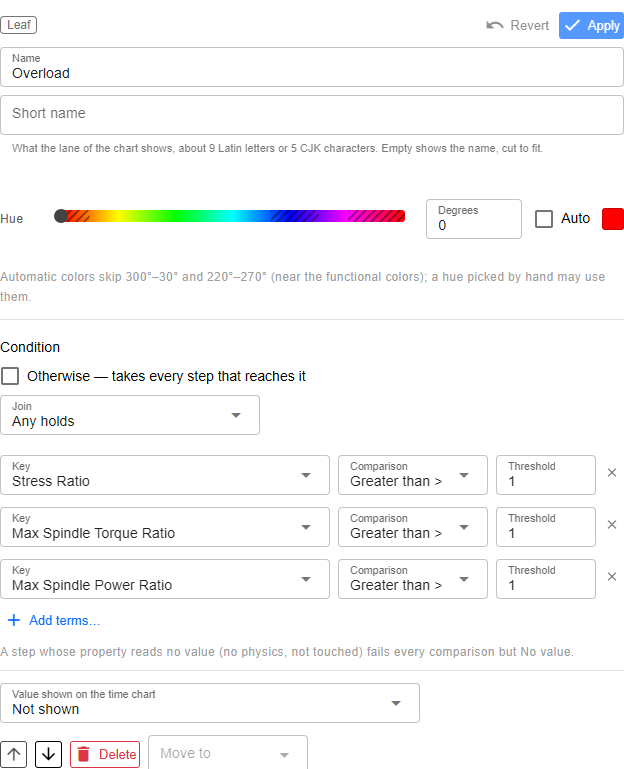
/execution?tree=execution/step-colors/LoadCheck/n2, with Show Physics Options on: the leaf
Overload of the example below, its hue picked by hand in a stretch the automatic colours skip.
Applying
Every panel of a tree — the tree's own and those of its groups and leaves — edits one set of changes, the tree's. Moving from one node of the tree to another, or to the tree's row, asks nothing, and the changes go along. The Control Tree's rows show them at once, a name typed or a node added, before anything is applied.
Apply, on any panel of the tree, sends the whole tree: its key, its name and every node. Revert puts the tree back as it was last applied. Whatever you type while Apply is on its way stays in the editor, not applied. An applied tree is in the project in memory at once, and when it is the color index, the 3D view and the Color Index Time Chart show it without a play.
Leaving the tree with changes not applied asks first, in Unapplied Changes: Cancel stays, Discard drops the changes, Apply & Switch applies them and goes on once they are applied. A switch that does not ask — another page from the menu bar, Follow on the Program row taking the selection to the file the run is in — keeps the changes, and they are there when you come back to the tree. Loading, reloading or closing the project, or starting a new one, drops them without asking, and so does closing or reloading the browser tab.
What is wrong is marked where it is, on the field, the node or the term, with the full explanation on hover:
- Errors, which keep the tree from being applied: a term without a key (Pick a key.), a comparison without a threshold (Type a threshold.), a comparison this version does not know. The header of every panel of the tree lists the errors elsewhere in it, under To fix elsewhere in this tree: — up to three, each a link that opens its place, and +N more for the rest.
- Warnings, for a tree that is legal but likely not what was meant, from a check that runs half a second after each edit and changes nothing: a condition with no terms (No terms: it holds for every step. under All hold, No terms: it holds for no step. under Any holds); a node after one that takes every step (Stands after a node that takes every step: no step reaches it.); a group with no children; a list with no node that takes every step, whose leftover steps get no colour; a hue outside 0 to 360; and more than 32 leaves, past which the chart no longer stripes a column by leaf, though it still draws a lane for each.
- Tags on a term whose key reads otherwise than a step property: Physics hidden, above; Unresolved, a key no step property has at the time — a step variable since deleted, or a key only a play or a script registers — which reads as no value until one does; and A color tree's key, which always reads as no value.
The marks do not hold Apply back. Only a key refused by the checks under Adding a tree does, on every panel of the tree, and the server's answer decides the rest: what it refuses comes back marked where it points, and nothing of the tree is applied; the warnings of a tree it applied come back as notifications.
If the tree is changed somewhere else while you have changes not applied — in another browser tab on the same project, or by an agent over the HTTP API — the panels say so: Apply puts your version over that change, and Revert takes it. Without changes of your own, the panels follow it.
Trying it on the played steps
Preview over the played steps, at the foot of the tree's panel, runs the tree as it stands in the editor, applied or not, over the steps the run has played: those in the strip charts' window, Display range, or All steps. It changes nothing — not the color index, not the colours — and runs only when you press Preview. Before anything has played, the button is off and the panel says to play the mission first.
The answer names the range it covered and its first and last step, then lists each leaf with its colour, its Steps, its Time and its Share of the time, a No value row for the steps no leaf took, and the Total. A leaf that took no step is a result too. Under the table the selected step — select one on a chart, in the Program viewer or in the 3D view — is followed through the tree: the nodes it was tried at, in order, ✓ where the condition held and ✗ where it did not, ending at its leaf with the leaf's value when the leaf shows one, and after them the values the tree read on the step, Read: and each key's value, = yes or = no for a yes or no.
Editing the tree, switching the range, moving the strip charts' window while Display range is picked, selecting another step or recomputing the physics marks the result as old, with a line saying which; press Preview again for a fresh one.
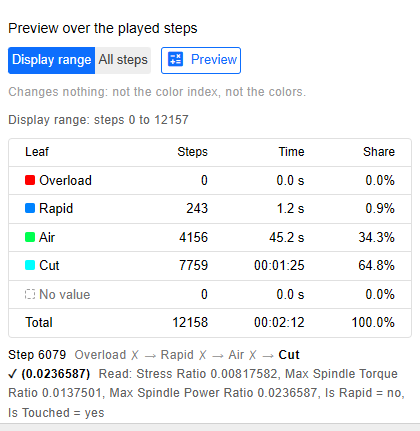
The preview on the tree's panel at /execution?tree=execution/step-colors/LoadCheck, over the whole
run, with a cutting step selected.
In the charts and the colours
A tree colours the run while it is the color index: set with Set as color index, or picked by its name in the Color Index Time Chart's property picker, under Engineering view, which lists HiNC's built-in trees first and a tree registered at run as well.
- The 3D view paints the tool path and the cut faces of each step in its leaf's colour, and a step no leaf took in pale green, the colour of a step without a value. No colour scale bar is drawn for a tree.
- The Color Index Time Chart draws one lane per leaf, named on its axis by the leaf's short name — the name, cut to fit, when the leaf has none — the first leaf's lane at the top, and in a leaf's lane the band of the value it shows (Watching the Run).
- The chart's Colors dropdown shows the tree in place of a colour range: Color tree: and the tree's name, In the display range, each leaf with its colour, its Steps and its Time share, a No value row when some steps fell into no leaf, and Edit color tree →, which opens the tree's panel here. For a tree registered at run it reads Registered at run, read-only instead. For a built-in tree it lists, under In the display range, what the leaves cannot show — collision detection that was off or ran without a collision licence, steps from a CSV program, and for Machining State the physics switched off, the spindle capability the ratios are read against and the tools whose stress ratio could not be evaluated (Engineering View Coloring) — and reads Built-in, read-only, with Copy to project tree… in place of the link.
- Step Properties shows a tree once you add its key, listed under Engineering View in the Step
Present Preference dialog (Inspecting a Step).
The row reads the number and the name of the step's leaf,
3 · Rapidin the example below, the number alone for a leaf without a name, and-for a step no leaf took. - A step file — Post-Execution › Step Files Output (The Other Commands) — carries a column under each registered tree's key, with the number of each step's leaf.
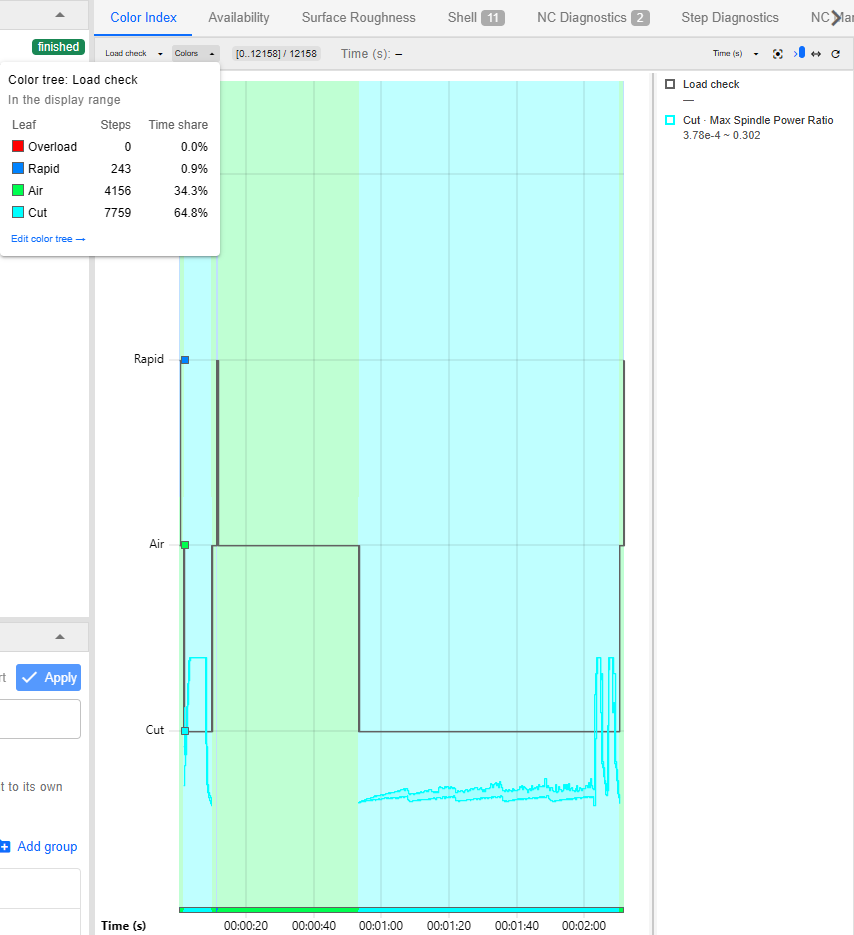
The Color Index Time Chart at /execution, with Load check as the color index and its Colors
dropdown open.
An example: a load check
A tree that marks every step of a run as an overload of the cutter or the spindle, a rapid move, a move in the air, or a cut:
| Node | Condition | Hue | Value shown |
|---|---|---|---|
| Overload (2) | Any holds: Stress Ratio, Max Spindle Torque Ratio and Max Spindle Power Ratio, each Greater than 1 | 0°, by hand | — |
| Rapid (3) | Is Rapid Is yes | Auto | — |
| Air (4) | Is Touched Is no | Auto | — |
| Cut (1) | Otherwise | Auto | Max Spindle Power Ratio |
The number after each name is the node's: the value Step Properties and the step file print for the leaf's steps. To build it, with Preference › Show Physics Options on:
- On the Step Colors root's panel, Add color tree, the key
LoadCheck, Add. The tree's panel opens on a tree with one leaf, Otherwise; typeLoad checkas its Name. - Add leaf. The leaf's panel opens, Leaf 2: name it
Overload, untick Auto under Hue and type 0 as the Degrees, then Add terms…, tick the three ratios under Physics, and Add 3. Each term comes in as Greater than 0: type 1 as each threshold. The join is Any holds already. - Select the tree's row, Load check, and Add leaf again:
Rapid, with Add terms… and Is Rapid under Common, which comes in as Is yes. - Once more:
Air, with Is Touched, its comparison set to Is no. - Open Otherwise: name it
Cut, and under Value shown on the time chart pick Max Spindle Power Ratio. - Apply, from any of the panels, then Set as color index on the tree's panel.
A step goes down the list in that order, so a rapid move is a rapid whether it touches anything or not, and Air takes the feed moves that touch nothing. The three ratios have a value only where the physics ran: on a play without it no step is an overload, and the steps go on to the leaves below. The threshold 1, each ratio's 100 %, is the example's choice — the built-in Machining State draws its lines there too — not a limit HiNC enforces. The thermal stress ratio is left out of Overload on purpose: it is a long-term indicator, which at or above 100 % marks machining that loses points — a loss of tool life, not a breakage risk — and which, with the shipped, conservative thermal properties, usually reaches 100 % under a toolmaker's recommended cutting data (Evaluating Process Machinability); Machining State gives it a leaf of its own, Thermal stress overload, after its overloads, and ordinary cuts often fall into it (Engineering View Coloring).
See Also
- Step Variables — the root above this one: your own values of each step, which share their keys with the color trees
- Watching the Run — the Color Index Time Chart, which draws a lane per leaf, and the colours of the 3D view
- Engineering View Coloring — HiNC's built-in trees, Machining State and Machining State (No Physics), which this root lists first and copies into the project's trees
- Inspecting a Step — Step Properties and the Step Present Preference dialog, where a tree is listed under Engineering View
- Color Trees — how a tree sorts the steps and colours its leaves, and a tree from a script or the project file
- Step Colors Branch — how the branch is built
- Workflow: Coloring Steps by Condition over the HTTP API — the same trees built over the HTTP API, end to end