Engineering View Coloring
The step coloring HiNC defines itself: two built-in color trees. Machining State sorts every step into a collision, a rapid cut, the load state of a cut, an air cut or a rapid; Machining State (No Physics) sorts it the same way without judging the load, from the play alone.
The Color Index Time Chart's property picker lists the step properties in two groups. Engineering view holds the color trees, each an integrated reading of a step: the step goes down the tree's list of conditions and takes the first leaf whose condition holds (Step Colors; Color Trees). Science view holds every other property, one quantity a row. At the top of the Engineering view stand the two trees HiNC ships:
- Machining State, key
MachiningState, thirteen leaves. A cut is judged by its load — the cutter's stress ratio, the spindle's torque, power and temperature ratios, the thermal stress ratio at the cutting edge — so the tree reads the physics, and without it a cut is Load not evaluated. - Machining State (No Physics), key
MachiningStateGeometry, five leaves. It reads only what the play itself produces — whether a step collided, whether a rapid cut stock, whether the cutter touched the workpiece, whether the step was a rapid — so it colours a run without the physics and without a physics licence.
A leaf the two trees share keeps the same id and hue in both — Collision (1), Rapid cut (2), Air cut (10) and Rapid (11) with the same condition too, and leaf 8, every touched cut in the no-physics tree and the cut whose load has no value in the full one. Both trees are there whenever a project is open; they are not saved with the project and follow HiNC's version, and to change one you copy it into the project's trees.
Where they are
- The property picker of the Color Index Time Chart (Watching the Run): Engineering view first, HiNC's built-in trees at its top — Machining State, then Machining State (No Physics) — each captioned Built-in, then the project's trees and the trees a script registered, by name; Science view below it, every other property with its unit under its name. The filter narrows both groups, a group with nothing left is not shown, and Enter in the filter box picks the first row shown. Picking a tree makes it the color index: the chart draws it in one lane per leaf, and the 3D view colours the tool path and the cut faces by its leaves. Machining State reads the physics, so it is not listed while the physics options are hidden (While the physics options are hidden).
- Control Tree › Step Colors (Step Colors): the root's panel lists the built-in trees first, under Built-in, with a hint that they are defined by HiNC and read-only, not saved with the project, follow HiNC's version and are copied to be changed. A tree's row gives its name, its key and its number of leaves, and the colours of its leaves, the first thirteen of them. Unfolded, it lists each leaf with its colour, its name and its condition in one line — Is Rapid = no —, a group as a row of its own with its condition and its leaves one level in, and carries Set as color index, or the Inspecting badge while the color index reads the tree, and Copy to project tree…. A built-in tree is a row of that panel only: it has no node in the Control Tree.
- The Step Present Preference dialog, while a project is open, offers both under Engineering View, the category of every color tree (Inspecting a Step).
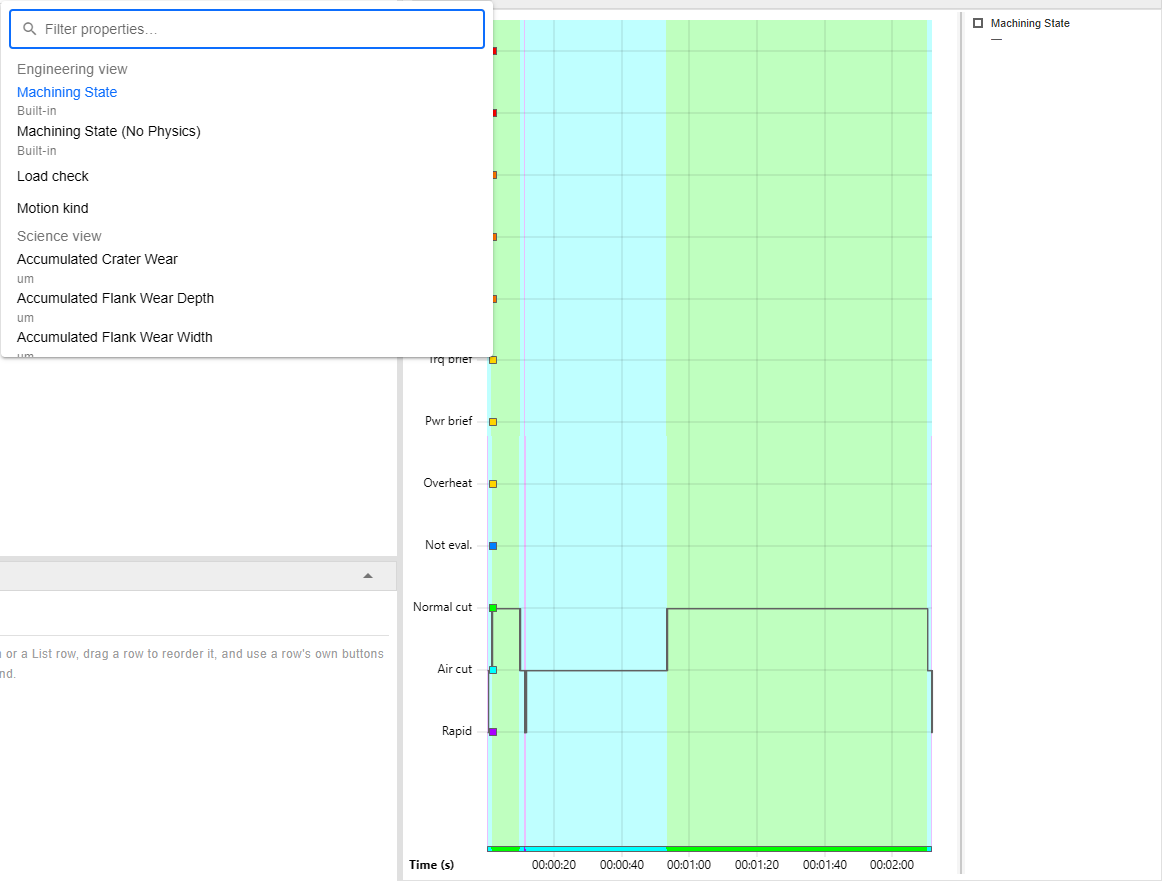
The picker at /execution, its filter empty and Machining State set as the color index: the
Engineering view lists HiNC's two trees first, above the project's tree Load check and Motion kind,
the tree the mission's script registered. The picture shows twelve lanes; the chart draws a
thirteenth, Thermal stress overload (Th. stress), between Load not evaluated and Normal cutting
(the leaf table).
The thirteen leaves of Machining State
A step goes down the list from the top and takes the first leaf whose condition holds. The group Cutting takes every step that touched the workpiece and tries only its own nine leaves on it, so a cut never reaches Air cut or Rapid. The chart's lane prints the short name; the legend, Colors and this table print the leaf's name:
| Leaf | Short name | Takes a step when | Hue | Value in its lane |
|---|---|---|---|---|
| Collision (1) | Collision | the step has a collision text — CollisionText has a value |
0° | — |
| Rapid cut (2) | Rapid cut | the step is a rapid that cut stock — IsRapidCut is yes; a rapid that only rubbed the layer a deflected cut left is a cut (Reading Rapid cut) |
0° | — |
| Cutting (group 12) | — | the cutter touched the workpiece — IsTouched is yes |
— | — |
| Stress overload (4) | Stress over | the stress ratio is 100 % or more — StressRatio ≥ 1 |
28° | the stress ratio |
| Spindle torque sustained overload (5) | Trq sust. | the step is in a run over the spindle's torque limit of more than 2 revolutions — SpindleTorqueOverloadRevolutions > 2 |
28° | the run's revolutions |
| Spindle power sustained overload (13) | Pwr sust. | the step is in a run over the spindle's power limit of more than 2 revolutions — SpindlePowerOverloadRevolutions > 2 |
28° | the run's revolutions |
| Spindle torque brief overload (6) | Trq brief | the max spindle torque ratio is over 100 % — MaxSpindleTorqueRatio > 1 |
50° | the max spindle torque ratio |
| Spindle power brief overload (14) | Pwr brief | the max spindle power ratio is over 100 % — MaxSpindlePowerRatio > 1 |
50° | the max spindle power ratio |
| Spindle overheat (7) | Overheat | the spindle working temperature ratio is 100 % or more while the max spindle power ratio has a value — SpindleWorkingTemperatureRatio ≥ 1, MaxSpindlePowerRatio has a value |
50° | the spindle working temperature ratio |
| Load not evaluated (8) | Not eval. | the stress ratio, the max spindle torque ratio or the max spindle power ratio has no value | 210° | — |
| Thermal stress overload (15) | Th. stress | the thermal stress ratio is 100 % or more — ThermalStressRatio ≥ 1 |
80° | the thermal stress ratio |
| Normal cutting (9) | Normal cut | otherwise: every other cut | 120° | — |
| Air cut (10) | Air cut | the step is no rapid — IsRapid is no |
180° | — |
| Rapid (11) | Rapid | otherwise: a rapid that touched nothing | 280° | — |
The order is the severity, so the top lane a stretch reaches is its worst state: a rapid that
collided and cut is a Collision, a rapid that cut a Rapid cut before it is a cut, a feed move
that touched nothing an Air cut. The two dangers are pure red, the colour HiNC keeps for danger.
Collision needs the collision detection on — the mission's Collision Detection setting, or
EnableCollisionDetection in a script — and Rapid cut is the play's rapid-cut check, the lines
it reports as Play-RapidCut--Detected (Reading Rapid cut). The thresholds are
fixed in the built-in tree; to change one, copy the tree into the project's trees
(Copying one into the project's trees). Step Properties prints
a leaf's id with its name, 4 · Stress overload, and the step file carries the id; no leaf has the id 3. The ids, the
conditions and the hues are the same in every language; the names follow the app language.
Reading the load leaves
- Stress overload reads the cutter, the next four leaves the spindle. The stress ratio sets the stress at the cutter's critical section against its material's stress line (Evaluating Process Machinability): under 100 % the cut is safe by HiNC's reading, and at 100 % or more the machining is bad. A step whose stress ratio is 100 % or more is a Stress overload at once, however short, and the value in its lane is the ratio. A spindle over its torque or power limit slows down on the machine, each revolution then taking a thicker chip; HiNC does not simulate the slowing — the spindle turns at the programmed speed — so the length of the run stands for it: more than 2 revolutions over the torque limit is a Spindle torque sustained overload, over the power limit a Spindle power sustained overload, and a shorter run a Spindle torque brief overload or a Spindle power brief overload.
- The two sustained overloads count revolutions, not the continuous rating. They read
SpindleTorqueOverloadRevolutionsandSpindlePowerOverloadRevolutions, the revolutions of a run of consecutive steps over the spindle's torque limit and of one over its power limit, and have nothing to do with the continuous (S1-rated) torque and power ratios,ContinueSpindleTorqueRatioandContinueSpindlePowerRatio, which no leaf reads. - The spindle's leaves name the cause. The torque ratio sets the peak torque of a revolution against the spindle's torque limit at the step's speed, the power ratio the power of the revolution against its power limit there. Each pair of leaves reads its own ratio and its own runs, and each brief overload shows its own ratio, so a step's lane says which limit it is over. The order is sustained before brief, the torque before the power within each: a step in runs of both, or over both limits, takes the first leaf that holds, its other ratio and run still readable in Step Properties. A step whose stress ratio is 100 % or more is a Stress overload already.
- Which strength the stress ratio reads. It compares the stress at the cutter's critical section
with one line its material file gives, the stress line:
YieldStrength_MPawhere the material gives one, the more conservative of the two strengths — a ductile steel such asAlloySteel42CrMo, the body of an insert-end cutter unless the cutter names another material, yields at 930 MPa — elseTensileStrength_MPa. A carbide, a ceramic, a CBN or a coating has no yield point, and its file says so with<YieldStrength_MPa>NotDuctile</YieldStrength_MPa>, as every shipped cutter material does, the hardened high-speed steels included: its line is its tensile strength. A material whose yield strength is merely not known has no such element and reads its tensile strength too.FractureStrength_MPa, a carbide's transverse rupture strength, is the line of no ratio: no leaf reads it. - The spindle revolutions are the run's.
SpindleTorqueOverloadRevolutionscounts a whole run of steps over the spindle's torque limit,SpindlePowerOverloadRevolutionsone over its power limit, each run apart, and a step reads its run's count once the run closes — at a step at or below that limit or unknown, at a rapid, at the end of the play — and the count so far while it is open; a play stopped at a pace point leaves its last run open until the next play starts or a reset, a stop between blocks closes it (Step Field Reference). So the first steps of a long torque overload are a Spindle torque brief overload while the run plays and become a Spindle torque sustained overload when it closes, in the chart and in the 3D view, and those of a power overload move the same way between the power's two leaves. - Spindle overheat needs the physics. The spindle's temperature evolves with the physics off as well, so the leaf also asks for the power ratio, which has a value only when the physics ran with a spindle capability: without it an overheated spindle's cut is Load not evaluated.
- Load not evaluated is never read as safe. A cut lands there when one of the three ratios has no value: the physics was off or did not run on the step, no spindle capability is loaded, or the cutter's stress ratio cannot be evaluated. A ratio that has a value and is over its line still decides first: a stress ratio of 1 or more is a Stress overload, a spindle ratio over 1 one of the four spindle leaves — the thermal stress ratio does not: Thermal stress overload is tried after Load not evaluated, so such a cut shows as Load not evaluated and its thermal stress ratio is still readable in Step Properties. The notes say which of the three causes applies (Reading the notes).
- Thermal stress overload is machining that loses points: a loss of tool life, not a breakage risk. The thermal stress ratio sets the thermal stress at the cutting edge against the flute material's stress line (Thermal Plastic Deformation of Cutting Edge): at 100 % or more the edge deforms plastically and wears faster, while nothing breaks at once — a long-term reading, unlike the stress ratio. Kept under 100 %, the cutter lasts noticeably longer. The leaf comes after the other load leaves, so a cut that is also over a limit, or whose load has no value, shows as that leaf. Many ordinary cuts fall into it, and that is its usual look. An entry or an exit cut, whose thin chip tends to leave its heat in the edge, as a rule comes down less, though how much a case shows it depends on the edge temperatures the thermal model reaches; outside them such a cut can be optimized, usually by changing the spindle speed by hand, while HiNC's NC optimization holds the ratio only when Thermal Yield Safety Factor is set on the NC Optimization Config command's Force & Safety node (The optimizer, as a step), by the feed per tooth at the programmed spindle speed (Thermal Plastic Deformation of Cutting Edge). Where the physics did not evaluate the thermal stress — the physics off on the step, a tool that is not a milling cutter, a cutter whose Flute Profile does not agree with itself, a cutter without a flute material — the ratio reads 0 and the leaf takes no step. A solid-end cutter without a flute material has no stress ratio either, so its cuts are Load not evaluated; an insert-end cutter without one is judged by the other leaves alone (Known limits).
- Normal cutting takes every other cut, a thin chip or a graze included unless its thermal stress ratio makes it a Thermal stress overload: a cut that removes little now and then is normal, and no leaf warns of the little it removes.
The five leaves of Machining State (No Physics)
The no-physics tree keeps Collision (1), Rapid cut (2), Air cut (10) and Rapid (11) of
the full tree, in that order and with their short names, and in place of the group Cutting a single
leaf, Cutting (load not evaluated) (8), 210°, which takes every step that touched the workpiece —
IsTouched is yes — and whose lane prints the short name Cutting. Its name says what it leaves out:
without the physics the tree judges no load, so an overloaded cut is a cut here. IsRapid is yes or
no on every step, so in both trees Rapid takes every step the leaves above it leave, and a step
falls into no leaf only when a read fails (see Known limits).
Reading Rapid cut
At the project's rapid-cut threshold of 0, the default (RapidCutVolumeThreshold_mm3;
Geometry Validation), a rapid that touches the stock is a
Rapid cut in both trees. A touched rapid that is not a Rapid cut is a cut: Cutting (load
not evaluated) in the no-physics tree, a leaf of Cutting in the full one, judged by its load.
The exceptions:
- Until its line is reported. The check folds the rapid steps of one NC line and reports the line when a feed step or another line follows it, or the play ends. Until then its touched rapid steps are cuts, and they move to Rapid cut once the line is reported.
- Under a threshold above 0, a line whose rapid steps removed less than it is not reported, and its touched rapid steps stay cuts: the same lines the warning leaves out.
- A graze straight back up the tool axis. Under the Feed Per Cycle or Feed Per Tooth
motion resolution, an APT cutter drawn straight up its own axis touches the stock only where it reaches
deeper than 0.001 mm into it: a shallower graze along such a retract — what a program's decimals
leave against a wall the cutter itself cut — is a Rapid at a rapid and an Air cut at feed.
The 0.001 mm is a fixed depth of the engine, not the project's threshold: no value of
RapidCutVolumeThreshold_mm3turns such a graze into a Rapid cut. A sideways or downward graze, and any graze under the Fixed motion resolution, touches: a Rapid cut at a rapid — unless it is the rub of the next exception —, a cut at feed. - A rapid that rubs the wall a deflected cut just left. With the deflection transformation on
(
EnableDeflectionTransformation), a cut leaves its wall off the programmed one by the tool's deflection, and once the load goes the rapid steps after it stand where the program has them, inside that layer, as a real tool springs back and rubs its own wall. Under the Feed Per Cycle or Feed Per Tooth motion resolution, with an APT cutter, a rapid step right after such a cut whose contact goes no deeper than the tip deflection the step before it was moved by, plus 0.001 mm, removes the layer and is touched (IsTouchedis yes), but the rapid-cut check leaves it out: it adds nothing to aPlay-RapidCut--Detectedline, and on a line with no other contact it raises none,IsRapidCutis no and the step is a cut — a leaf of Cutting such as Normal cutting in the full tree, Cutting (load not evaluated) in the no-physics tree. A rapid that reaches deeper into the stock is a Rapid cut as before. The first step after a tool change gets no such allowance, and the Fixed motion resolution and a cutter without an analytic shape make no such exception. - A rapid plunge before the spindle has turned. A rapid into the stock before any step has run with a spindle speed is the collision detection's while it is on: a Collision, on no rapid-cut line. With the detection off the rapid-cut check counts it, and it is a Rapid cut. With the detection on but no collision licence it is neither: the detection finds nothing and the check leaves the step to it, so it is a cut, and with the spindle standing one the physics does not judge — leaf 8 in both trees.
Reading the notes
A chart drawing a built-in tree says, in its Colors dropdown under In the display range, what the leaves cannot show about the steps it colours — one line each, after an information icon, in this order. Both trees carry the first three:
- Collision detection was off — for every step, for the steps it names (
0–1203, the first eight ranges and how many more), or, when the detection was switched more than 4,096 times, for part of them: there Collision stays empty whether or not anything collided. - Collision detection was on without a collision licence — for every step, the steps it names, or part of them when the detection changed more than 4,096 times between answering and answering nothing: nothing was detected there, and Collision stays empty whether or not anything collided. A play with no machining chain to detect against reads the same, and the line says so.
- The steps came from a CSV program — all of them, the steps it names, or part of them when the program kind changed more than 4,096 times. A CSV program has no rapid: none of its steps is a Rapid or a Rapid cut, a move of it that touched nothing is an Air cut, and one that touched is a cut. The collision lines hold for a CSV program as for an NC one.
Machining State adds three about the load:
- The physics was off — for every step, the steps it names, or part of them when the physics was switched more than 4,096 times: no load is judged there, and a cut is Load not evaluated.
- The spindle capability the spindle ratios and the spindle temperature are read against, by its name and where it comes from — a file, which the line names, or the project itself — with the reminder to check it against the real machine's curves. The line is there once the physics was on and gave some cut a result. When no spindle capability is loaded — the file the project names could not be read — the line says so instead: the spindle ratios and the spindle temperature are not evaluated, and a cut is Load not evaluated unless its stress ratio makes it a Stress overload first.
- The tools whose stress ratio could not be evaluated on any cut, by number —
T3, T7— because the cutter is not a milling cutter, its beam material is not set or has no known strength, or no beam section lies outside the tip zone: their cuts are Load not evaluated unless a spindle leaf takes them first. They are the tools the play's warningPlay-StressRatio--Nonenames.
Under review (Recording the play and reviewing it) each tree carries one line, and no other — A recorded play is under review, worded for its tree:
- In Machining State (No Physics): whether the collision detection was on is not recorded, and no rapid cut is judged, so a rapid that touched is Cutting (load not evaluated).
- In Machining State: the same, a rapid that touched being sorted as a cut by the load the recording holds, a leaf of Cutting; and the recording's spindle torque and spindle power overload runs are not folded, so their revolutions read 0 and neither Spindle torque sustained overload nor Spindle power sustained overload is judged. Stress overload and Thermal stress overload read the recorded stress ratio and thermal stress ratio themselves and are judged.
In both, the collisions the recording kept fall into Collision.
The notes cover the steps since the last reset, not one play. Start does not reset
(A Start after a Stop), so a run stopped, switched and
started again carries both on one strip: stop a run that played without collision detection, switch it
on, start again, and the line names the steps played before the switch. Reset clears the record
with the steps. Playing the same program again, or the mission's next program, adds to the same
record; switching after the last step adds nothing, since no step was built under the new setting. The
physics line follows the mission's Physics command, or EnablePhysics in a script, the same way.
A switch inside the program counts from the next step built after it: an NC-embedded command such as
G01 X25. F800 (@@EnableCollisionDetection=false;), whose @@ runs before the block's motion, covers that
block's steps and the ones after them
(Script Command). Put it on the motion line the change is for; after
the program's last motion it changes nothing.
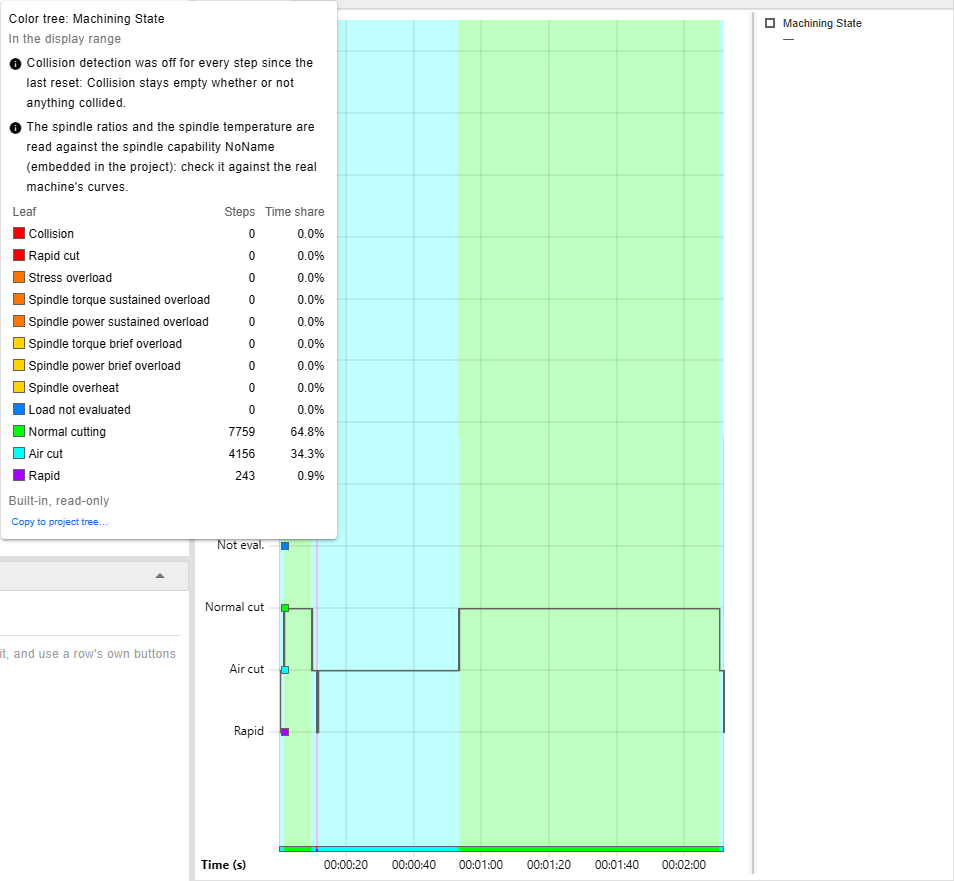
The chart at /execution after a play with the physics on, whose mission's Collision Detection
command has Enable Collision Detection cleared, its row reading Collision Detection [Off]: the
dropdown says the detection was off, and the Collision lane is empty; its second note names the
spindle capability the spindle ratios and the spindle temperature were read against, the one embedded
in the project. Unticking the row instead would only skip the command: the detection would stay as
the project sets it, on in this one, and the first note would not appear. The picture shows twelve
lanes and twelve rows in the dropdown's table; the chart and the dropdown hold a thirteenth leaf,
Thermal stress overload, between Load not evaluated and Normal cutting
(the leaf table).
While the physics options are hidden
With Preference › Show Physics Options off, or without a physics licence, the interface hides the physics, and Machining State with it:
- The picker and the Step Present Preference dialog leave it out, Machining State (No Physics) their one built-in tree. The Step Colors root still lists both, and Set as color index works on either; the full tree's conditions on the physics show Physics hidden there, as a project tree's do, and so do a copy's in its editor.
- While the color index is Machining State, the Color Index Time Chart draws Machining State (No Physics) in its place — its five lanes, in the colours the full tree gives the same leaves — and the picker shows that tree as the current pick. The color index stays Machining State, and once the physics options are shown again the chart draws it.
- The 3D view goes on colouring by Machining State. With the physics licensed and its options only hidden, the physics runs, and a cut the chart shows as Cutting (load not evaluated) can be a Stress overload on the canvas; without the licence it does not run, and the two agree.
- The Colors dropdown shows Machining State, the 3D view's tree: its thirteen leaves, their colours and its notes, read again when the dropdown opens. Its Steps and Time share are the chart's, by leaf: every cut counts under Load not evaluated, and the eight leaves the no-physics tree lacks read 0.
Copying one into the project's trees
Copy to project tree… — on a tree's row in the Step Colors root's panel, or in the chart's
Colors dropdown — opens Copy to Project Tree. Its Key starts at the tree's key and Copy,
MachiningStateCopy or MachiningStateGeometryCopy, or …Copy2 and on when that is taken, and is
checked as a new tree's key is (Adding a tree); its Name starts at
the built-in tree's name and (copy), in the app language. Copy adds the copy at the end of the
project's trees and opens its panel.
The copy is the project's own tree, as the dialog says: saved with the project and editable — a threshold, the two revolutions, a leaf of your own — and HiNC's later versions leave it as it is. It keeps the built-in tree's node ids, the group's included, conditions and hues; its name is the dialog's Name, and its leaves' names and short names are those of the app language, your text from then on. A copy carries no notes: the notes are the built-in trees', and a project's tree has none. A copy of Machining State is no physics property itself: while the physics options are hidden the picker lists it and the chart draws it, its terms on the physics tagged Physics hidden and read all the same (Writing a condition). Copying leaves the color index where it was; set the copy as the color index on its panel to colour the run by it.
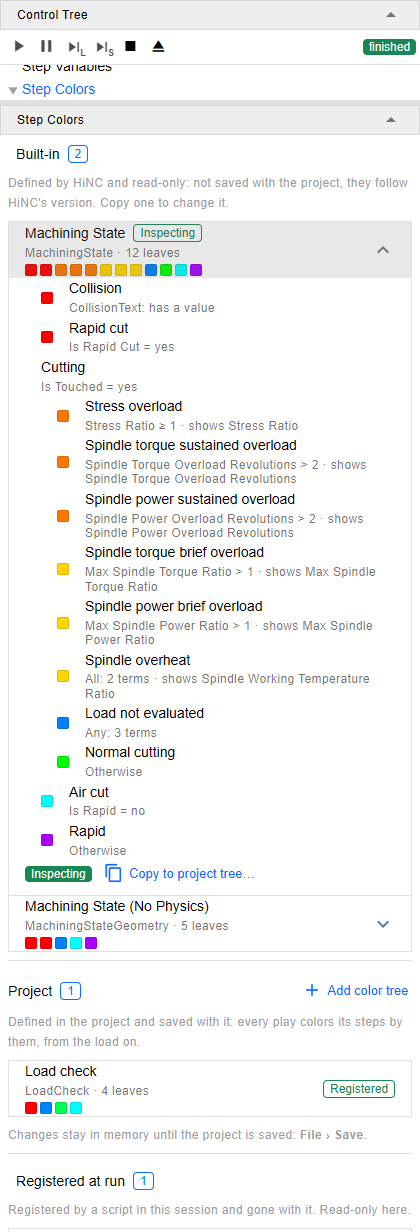
The branch at /execution?tree=execution/step-colors, Machining State set as the color index
and unfolded, in the project of the picker above; below the picture the panel goes on with the
Registered at run group. The picture shows twelve leaves and twelve swatches; the panel also holds
a thirteenth leaf, Thermal stress overload, in the group Cutting between Load not evaluated and
Normal cutting, its swatch the row's tenth, in yellow-green
(the leaf table).
Over the HTTP API and in scripts
The trees are step properties like any other, under their keys MachiningState and
MachiningStateGeometry: the Color Index Time Chart, the 3D colours, Step Properties and the step
file read them as they read the project's trees.
- The routes.
GET api/execution/step-color-treeslists both underbuiltInTrees,MachiningStatefirst, withorigin: "builtIn"andreadOnly: true; aPUTor aDELETEunder either key answers409StepColorTreeBuiltIn;POST api/execution/step-color-trees/{key}/copycopies one, the body{ "newKey", "name" }optional; a preview by either key works as for any registered tree. The strip chart'scolorTreeand the color guide'streecarry the notes as{ code, message, args }, and the chart'scolorTree.standsInForisMachiningStatewhile the no-physics tree stands in for it. The shapes are in Step Color Trees over HTTP. - The keys are reserved.
MachiningStateandMachiningStateGeometryare taken like a built-in step property's key: a step variable, a color tree, a script'sRegisterStepVariableorRegisterStepColorTree, and a CSV or mapped column under either is refused or skipped. A project file edited by hand that holds a tree or a step variable under one is read and saved as it is, listed as Key of a built-in property, and never registered; such a tree can be renamed away or deleted, but not replaced under the key. - The step file of a play with a project open has a column for each tree:
MachiningStateholding each step's leaf id, 1, 2, 4, 5, 6, 7, 8, 9, 10, 11, 13, 14 or 15, andMachiningStateGeometry, 1, 2, 8, 10 or 11, the same in every language (Step Field Reference). The engine's messages name a tree by its key,[MachiningState], and the 3D view shows the leaves' colours alone: no colour scale bar, no legend.
Known limits
- The engine's known misreads colour a step as they read it. The load leaves take the forces and
ratios at their word. Cases have shown these:
- A rest-machining cutter meeting a corner head-on — a slot's end, an inside corner — or running its whole edge length along a thin layer read its forces and removal 2 to 7 times high: a Stress overload or a spindle overload there, at a corner or along a thin wall, is suspect.
- A part set up turned 120° about a diagonal — a side plate standing in a vise, the tool axis along the part's X — read no force at all on its drilling and circle milling: those cuts are Normal cutting, green, however hard they are, and a cut found no contact for is an Air cut.
- Two readings the tree does not use, but a copy may: a ball-nose cutter going up or down a slope
read its material removal rate (
Mrr_mm3ds) 8 to 19 times high, and a narrow slot its cutting depth (CuttingDepth_mm) at twice each layer's; the forces were right in both.
- A step on a very short move can read a spindle ratio far over its limit. The first step after a zigzag ramp turns back in a roughing program, a move of 0.011 mm, read a power ratio of 2.67 beside a torque ratio of 0.97: a lone Spindle power brief overload among normal cuts. Read that step's Move Length, its engagement and the steps beside it before taking it for an overload; HiNC filters no such step out.
- A cut the physics does not compute while its switch is on has no ratio, so it is Load not
evaluated, and no note says why — the physics line reads the switch alone, and the tools line
names only tools whose cuts the physics ran on. That happens without a physics licence, on a tool
the physics does not run on, such as one that is no milling cutter, and while the spindle stands.
Play-Physics--Nonewarns when no cut of a play got a physics result, as when the spindle never turned. - A thermal stress the physics did not evaluate reads 0, and no note says so: the thermal stress
ratio is 0 on a step played with the physics off, for a tool that is not a milling cutter, for a
cutter whose Flute Profile does not agree with itself, for a cutter without a flute material, and
on a step whose thermal model has not run since the tool change, its inputs missing or the model
unavailable. Such a cut never falls into Thermal stress overload and is judged by the other
leaves alone. A solid-end cutter without a flute material has no stress ratio either and is Load
not evaluated; an insert-end cutter without one reads its stress ratio off its body —
AlloySteel42CrMounless the cutter names another material —, so its cuts can be Normal cutting whatever heat their edge took. Set the flute material on the cutter's Material node (Cutter). - The placeholder spindle. A project that never set a spindle capability carries HiNC's default,
named
TMV-720A-STD-8000RPM, in the project itself; the spindle line names it as the project's own, and nothing tells it from one chosen on purpose. Set your machine's (Spindle Capability). - An old copy of a cutter material. A project keeps its own copy of each cutter material it loaded; when a later HiNC ships the material with other strength values, the copy keeps the old ones and the stress ratio follows them. Reload the shipped material on the cutter's Material node to take the current values (Cutter), then recompute or replay: until then the steps keep the stress ratio they were played with, after an edit made in place as well.
- A tool change builds a step of its own when it is the strip's first step: the step lasts the
tool-change time, reads the modal rapid state and falls into Air cut or Rapid, or is a cut
when the tool touches. No field tells it from the moves around it. An
M06in the middle of a program builds none, with the deflection transformation on as well (EnableDeflectionTransformation, off by default): the transformation shifts each step's sweep by the tip deflection the previous step's largest force bends the tool to, so the stock and the geometry difference carry the deflected tool, while the toolpath and the step's feed and feed per tooth stay as programmed. The first step after a change to another tool is not shifted: the new tool starts undeflected, with none of the previous tool's deflection. - A CSV program has no rapid, so its steps are Air cut or cuts, and a review of a recorded play judges no rapid cut and neither spindle sustained overload: their notes say so, and no more.
- Collision detection switched on without a collision licence detects nothing, and the note Collision detection was on without a collision licence says so — a play with no machining chain to detect against takes the same note. A rapid plunge before the spindle has turned is then a cut, neither a collision nor a rapid cut (Reading Rapid cut).
- A step whose property read fails falls into no leaf, and the session says so once for the tree
(
StepColorTree-Evaluate--Faulted). - An earlier HiNC opening a project saved with a built-in tree as its color index does not know
the key: its play ends with the warning
Play-InspectingKey--Unresolved. - The three overload-revolution properties of the Science view, Spindle Torque Overload Revolutions, Spindle Power Overload Revolutions and Stress Overload Revolutions, start from a colour range of 0 to 10 revolutions, where every other number starts from 0 to 1; a project that saved a range for one keeps it, 0 to 1 included: set it on Colors.
See Also
- Step Colors — the color trees, the Step Colors root that lists the built-in trees first, and the panel a copy opens in
- Watching the Run — the Color Index Time Chart, its two groups of properties and its Colors dropdown
- Step Color Trees over HTTP — the built-in trees over the HTTP API: the list, the copy, the read-only answer, the stand-in and the notes
- Step Colors Branch — how the root's panel lists the built-in trees and copies one
- Step Colors REST — how the server answers for the built-in trees, and where their notes come from